1. Introduction
Email communication is an important part of an Odoo ERP implementation. Odoo uses email for quotations, sales orders, invoices, CRM communication, purchase documents, automated notifications, and other business workflows.
For organizations using Microsoft Outlook or Microsoft 365, the Odoo Outlook integration allows the mailbox to be connected to Odoo. Odoo 19 supports Microsoft OAuth for secure Outlook/Microsoft 365 email communication.
This guide explains the complete process from Microsoft Entra ID application registration through outgoing and incoming mail server configuration.
2. Prerequisites
- An active Microsoft 365 / Outlook mailbox.
- Administrator access to Microsoft Entra ID.
- Administrator access to Odoo.
- Your Odoo database URL.
- Permission to register an application and grant the required Microsoft Graph permissions.
3. Create an Application in Microsoft Entra ID
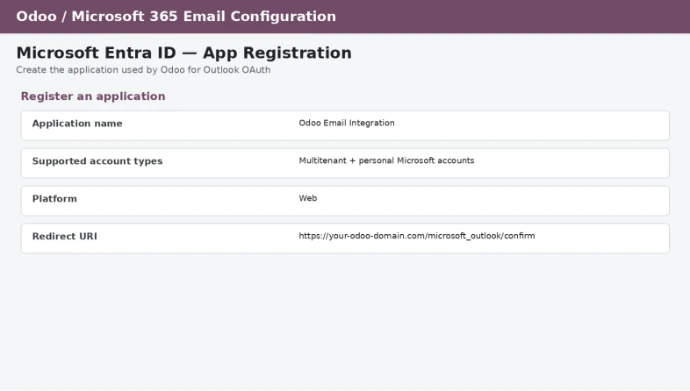
Log in to the Microsoft Entra admin center and navigate to App registrations → New registration. Create an application with a recognizable name such as Odoo Email Integration.
For the Web redirect URI, use your Odoo domain followed by /microsoft_outlook/confirm. The redirect URI must match the address configured in Microsoft Entra ID.
4. Configure Microsoft Graph API Permissions
Open API permissions → Add a permission → Microsoft Graph → Delegated permissions. Add SMTP.Send for outgoing email and IMAP.AccessAsUser.All for incoming mailbox access. User.Read is commonly present as a basic delegated permission.
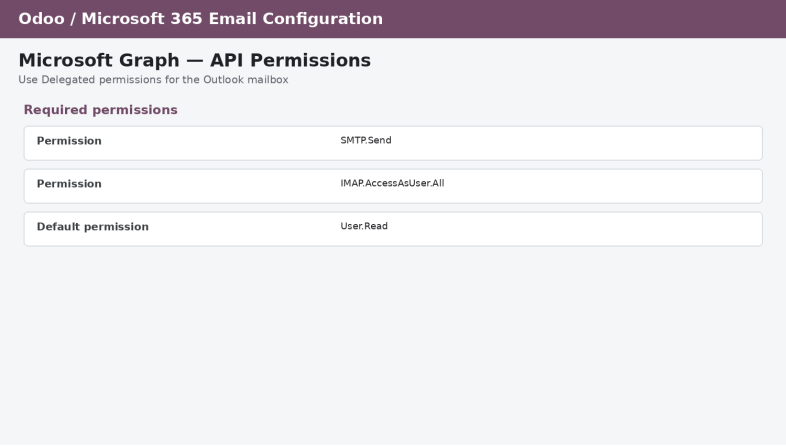
Figure 2 — Microsoft Graph delegated permissions required for Outlook email integration (illustrative reference image).
5. Create the Client Secret
Go to Certificates & secrets → New client secret. Create a client secret and save its Secret Value immediately. Also record the Application (Client) ID from the application's Overview page.
Important: The Client Secret Value is different from the Secret ID. The value is the credential that must be entered into the Odoo Outlook configuration.
6. Configure Outlook Credentials in Odoo
In Odoo, install the Microsoft Outlook module if it is not already installed. Then go to Settings → General Settings. Under the email configuration area, enable Use Custom Email Servers. Enter the Application ID and Client Secret Value obtained from Microsoft Entra ID and save the configuration.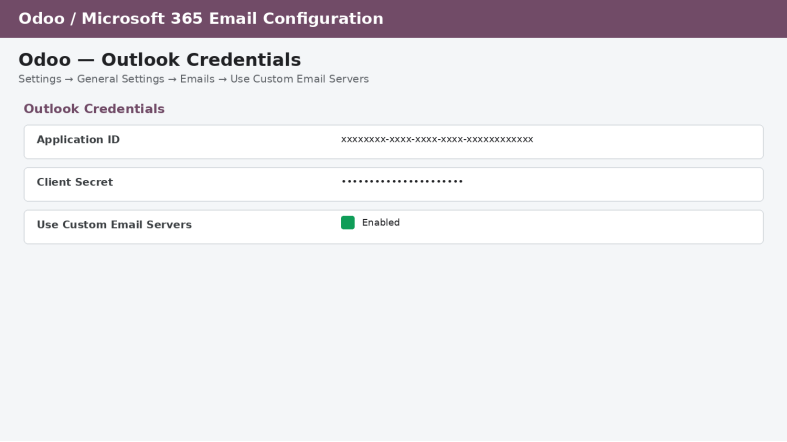
Figure 3 — Odoo Outlook Credentials configuration (illustrative reference image).
7. Configure the Odoo Outgoing Mail Server
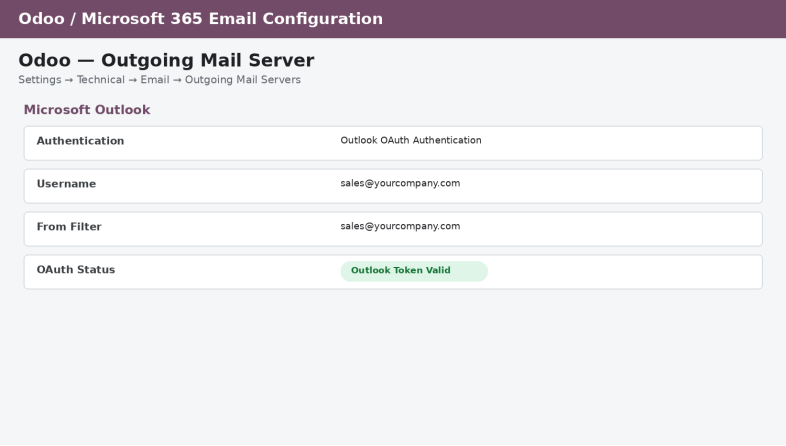
- The outgoing mail server is responsible for sending emails from Odoo. Navigate to Settings → Technical → Email → Outgoing Mail Servers and create a new configuration.
- Select Outlook OAuth Authentication.
- Enter the Microsoft Outlook / Microsoft 365 mailbox username.
- Configure the From Filter when the server should be restricted to a particular sender address.
- Click Connect your Outlook account and complete Microsoft authentication.
- Verify that Odoo reports Outlook Token Valid.
- Use Test Connection to verify the outgoing configuration.
8. Configure the Odoo Incoming Mail Server
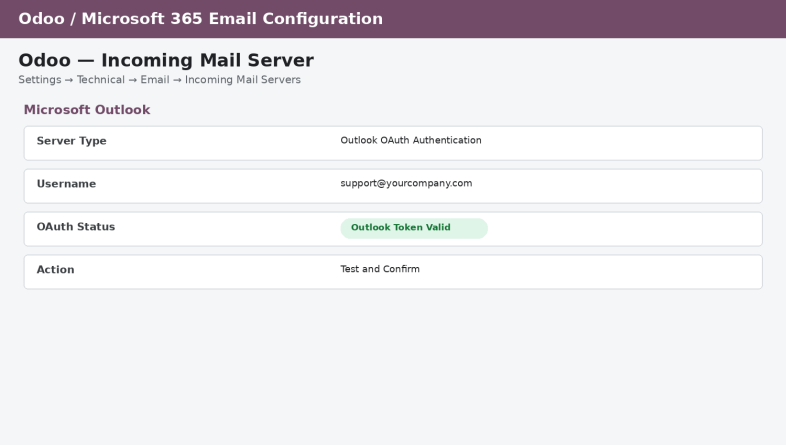
The incoming mail server retrieves emails from the Outlook mailbox into Odoo. This can support replies and email-driven workflows such as CRM leads, Helpdesk tickets, projects, and other Odoo aliases.
Go to Settings → Technical → Email → Incoming Mail Servers.
Create a new incoming mail server configuration.
Select Outlook OAuth Authentication.
Enter the Microsoft Outlook username.
Click Connect your Outlook account.
Complete Microsoft authentication.
Confirm that Odoo shows Outlook Token Valid and test the connection.
9. How the Odoo Outlook Email Flow Works
For incoming messages, Odoo's email aliases can route messages to the appropriate business record. Odoo recommends IMAP over POP for incoming mail servers because IMAP fetches unread messages while maintaining the mailbox state.
Direction | Email Flow | Typical Examples |
Outgoing | Odoo → Microsoft 365 / Outlook → Customer | Quotations, invoices, sales orders, CRM emails, notifications |
Incoming | Customer → Microsoft 365 / Outlook → Odoo | Replies, support emails, CRM/Helpdesk routing |
10. Single Mailbox vs. Multiple Mailboxes
There are two common approaches for an Odoo Microsoft 365 integration.
Option A — Single shared mailbox
A generic mailbox such as notifications@company.com can be used for transactional emails across the Odoo database. This is often simpler for smaller organizations.
Option B — Multiple user mailboxes
Separate outgoing mail servers can be configured for users such as john@company.com, jane@company.com, and notifications@company.com. The From Filter can be used to ensure each server is used for the intended sender.
Odoo's official Outlook OAuth documentation describes both single outgoing server and user-specific multiple-server configurations.
11. Common Problems and Troubleshooting
Problem | What to Check |
Authentication failed | Client ID, Client Secret Value, redirect URI, Microsoft account, API permissions and admin consent. |
OAuth token is invalid | Reconnect the Outlook account and verify the Microsoft application credentials. |
Incoming emails are not received | Check IMAP permission, incoming mail server, mailbox access, aliases and scheduled email fetching. |
Wrong sender address | Review the outgoing server From Filter and the configured Odoo sender. |
Emails remain in queue | Review the Odoo email queue and verify the outgoing OAuth connection. |
Note: Odoo's current documentation recommends incoming mail servers primarily for shared inboxes such as sales@ or support@, rather than personal user mailboxes, to reduce privacy, routing, and synchronization risks.
Reference Configuration
Service | Server | Port | Security |
IMAP | outlook.office365.com | 993 | SSL/TLS |
SMTP | smtp-mail.outlook.com | 587 | STARTTLS |
For Odoo 19, the preferred approach is to use the built-in Outlook OAuth workflow instead of relying on legacy password-based authentication.
Conclusion
The Odoo Outlook integration provides a secure and practical way to connect Microsoft 365 email with Odoo ERP. By configuring Microsoft Entra ID, Microsoft Graph permissions, OAuth credentials, and Odoo's outgoing and incoming mail servers, organizations can centralize business email communication inside Odoo.